AI product videoimage to videoecommerce videoAI video for adsAvocadio
How to Create Product Videos with AI: A Step-by-Step Guide to AI Product Video Generation
October 11, 2026Updated October 25, 2026
Wondering how to create product videos without a studio? AI product video generation turns one good product photo, or a text description, into a short clip you can use on product pages, ads and social posts. In this guide you will learn the exact workflow: choosing the photo, deciding the clip's job, writing the prompt, generating variations and finishing the video. No camera crew, no lighting rig, and you can test several looks for the same product in an afternoon.
The 7-shot product video shot list
Seven shots cover a product page, an ad and a month of posts. Each one has a job, so write the shot first and the prompt second.
Hook. The first second that stops the scroll, with something surprising or satisfying. Prompt: "A close-up of the product landing on a wet stone counter, quick push-in, droplets frozen mid-air, hard side light, high contrast, attention-grabbing product ad."
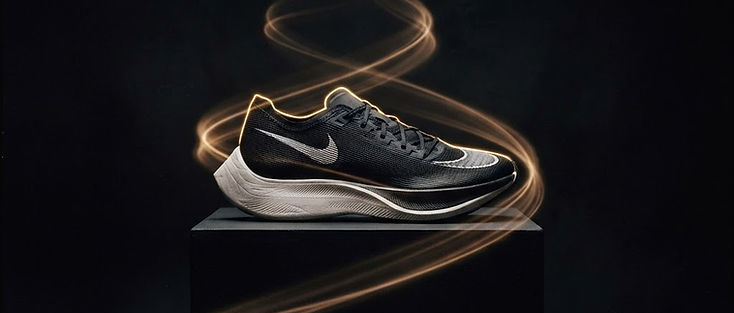
Hero (slow orbit or push-in). The product alone, premium and still, for the product page. Prompt: "The product on a black marble ledge, slow 180-degree orbit, soft golden rim light on a dark background, luxurious and calm, high-end product commercial."
Scale (in hand). The real size, shown next to a hand. Prompt: "The product held in one hand above a wooden desk, slow push-in, soft window light from the left, everyday setting, natural colors, lifestyle product video."
Detail close-up. Texture, material or one feature. Prompt: "Extreme close-up of the fabric weave, slow camera drift, soft diffused daylight, shallow depth of field, tactile and refined, detail product shot."
In-use. The product doing its job in a real setting. Prompt: "Hands using the product at a kitchen counter, gentle handheld movement, warm morning light from a window, casual everyday feel, lifestyle product video."
Result. The finished state, laid out beside the product. Prompt: "The product next to the finished result on a wooden table, slow lateral pan, warm late-afternoon light, calm and satisfying, product video."
CTA frame. A closing frame with empty space for your text. Prompt: "The product on the right third of the frame against a plain dark background, slow push-in, soft studio light from the upper left, clean empty space on the left for text, minimal product commercial."
Why product videos matter (and why AI helps)
Static photos show what a product looks like. Video shows how it feels: the shine on a bottle, the texture of a fabric, the scale of a gadget in someone's hand. On social platforms, motion is also what stops the scroll.
AI video generation helps in three ways:
Speed. You can go from idea to clip in minutes instead of scheduling a shoot.
Variety. You can test several looks, backgrounds, and moods for the same product without reshooting.
Cost control. You spend credits on generations instead of renting gear and space.
AI does not replace good product photography, though. It amplifies it. The better your source image, the better your video.
AI product video generation: image to video vs text to video
Image to video is the right choice when you already have a product photo. The model animates what it sees, so the product keeps its real shape, color and details, which is exactly what a product page needs.
Text to video is the right choice when you only have a scene idea and no photo: a mood shot, a background, a lifestyle moment. It is also the fastest way to test a look before you commit to it. For the basics, see how to turn text into video with AI.
Step 1: Start with the right product photo
If you use an image-to-video workflow, your photo is the foundation. A few rules make a big difference:
Use a sharp, well-lit image. Blurry or dark photos produce muddy motion.
Keep the product clearly separated from the background. A clean or simple background gives the AI room to add movement without distorting the product.
Show the product from its best angle. The model will mostly animate what it sees; it will not invent a better angle for you.
Avoid busy text overlays on the image itself. Add text later in your editor.
If you are new to animating still images, our guide to image to video AI covers the basics of turning photos into motion.
Before writing a prompt, decide the job of the video. Different goals call for different shots:
Hero shot for a product page: slow, elegant movement, like a gentle camera orbit or light sweeping across the product.
Social ad hook: something faster and more surprising in the first second, like a dramatic push-in or particles bursting around the product. See AI UGC video ads for phone-style hooks that feel native in a feed.
Lifestyle context: the product placed in a scene, such as a coffee mug on a sunny kitchen counter with steam rising.
Detail shot: a close-up that highlights texture, material, or a specific feature.
Pick one goal per clip. Trying to do everything in one generation usually produces a confused result.
Step 3: Write a clear product video prompt
A good prompt describes the subject, the motion, the camera, the lighting, and the mood. Keep it concrete. Here is a simple structure:
Subject + setting + camera movement + lighting + mood + style
Examples you can adapt:
A glass perfume bottle on a black marble surface, slow camera orbit, soft golden rim light, luxurious and calm, cinematic product commercial.
A pair of running shoes on a concrete floor, quick push-in from wide to close-up, dramatic side lighting, energetic, sports ad style.
A ceramic coffee mug on a wooden kitchen counter, morning sunlight through a window, gentle steam rising, cozy and warm, lifestyle video.
If you want a more dramatic look, see our cinematic AI video prompts, though product clips usually read better when the product, not the effect, is the hero.
Lighting is one of the biggest levers for a premium look. If you want to go deeper, read our lighting for AI video prompts.
A few prompt tips specific to products:
Say "the product stays unchanged" or describe it precisely so the model keeps its shape and details.
Prefer simple camera moves (orbit, push-in, slow pan). Complex moves increase the chance of distortion.
Describe the background explicitly, or the model may fill it with something random.
>
12 product video prompts to copy
Each prompt follows the same structure: subject, setting, camera movement, lighting, mood, style. Swap the product for yours and keep the rest.
Skincare or perfume
A frosted glass perfume bottle on a black marble ledge, slow 180-degree orbit, soft golden rim light on a dark background, calm and luxurious, high-end product commercial.
A skincare serum bottle on a wet stone bathroom counter, slow push-in, cool morning window light with soft shadows, fresh and clean, minimal lifestyle video.
Shoes or apparel
A pair of white running shoes on a concrete floor, quick push-in from wide to close-up, dramatic side lighting with a hard shadow, energetic, sports ad style.
A folded linen shirt on a wooden table, gentle overhead drift, warm window light, relaxed and tactile, editorial fashion video.
Production note
Create this in Avocadio
Turn these techniques into a finished short film. Avocadio turns prompts into cinematic AI video — no editing suite required.
A wireless earbud case on a dark desk, slow orbit around the case, cool blue accent light with a soft glow, sleek and modern, tech commercial.
A smartwatch on a wrist, close-up push-in, natural daylight from a window, everyday and effortless, lifestyle tech video.
Jewelry
A gold ring on a black velvet surface, extreme close-up with a slow arc, a single sparkle highlight from a small light source, elegant and precious, luxury jewelry commercial.
A layered gold necklace draped on linen, very slow camera drift, soft diffused daylight, intimate and refined, editorial jewelry video.
Home goods
A ceramic vase on a wooden shelf, slow lateral pan, warm late-afternoon light through a window, calm and homely, interior lifestyle video.
A scented candle on a coffee table, gentle push-in with the flame in focus, low warm light with soft shadows, cozy and quiet, home decor commercial.
Step 4: Generate 2 to 3 takes per shot and pick the most accurate
Treat the first generation as a draft. Generate two or three takes per shot with small prompt changes: a different light direction, a slower camera, a warmer palette. Compare them side by side and keep the take where the product looks most accurate and the motion feels natural.
In Avocadio, Image to Video animates your product photo, while Text to Video lets you turn text into video when there is no photo to start from. Starter prompts and templates give you a base to adapt, your history keeps every generation so you can compare versions later, and generations use credits, so short test takes first is the cheaper way to find the look.
Step 5: Assemble, add captions and music
Raw AI clips are short, so the edit is where the video happens. Cut the shots in order, one to two seconds per cut for a feed and slower for a product page, and keep the first second the strongest.
Add voiceover or music and burn in captions, since much feed viewing happens with the sound off. Put your logo, product name and a short call to action as text overlays on the CTA frame. For stitching techniques, see our guide on editing AI clips into a short film.
Step 6: Export the right format
The same product clip may need different shapes depending on where it runs:
9:16 for TikTok, Instagram Reels and YouTube Shorts.
1:1 or 4:5 for feed placements.
16:9 for your website and YouTube.
Plan the format before you generate, so the product sits well inside the frame. Our guide to aspect ratios for social video explains which shape fits which platform.
Step 7: Test variants, change one element at a time
Once a video works, change one thing and re-test it: a different hook cut from the same clips, a different persona, a different setting or a different opening frame. Change everything at once and you cannot tell what improved the result.
Keep the winning prompt in your history and use it as the base for the next product.
Product video types and when to use them
Type
Goal
Length
Best platform
Example prompt
Hero / product page
Sell the product on its own page
5-10s
Product page, website
"The product on a black marble ledge, slow 180-degree orbit, soft golden rim light, luxurious and calm, high-end product commercial."
Social ad
Stop the scroll in the first second
3-6s
TikTok, Reels, Shorts
"Quick push-in on the product as particles burst around it, hard side light, high contrast, energetic sports ad style."
Lifestyle
Show the product in a real moment
5-8s
Instagram feed, blog
"The product on a sunny kitchen counter with steam rising, gentle camera drift, warm morning light, cozy lifestyle video."
Detail / feature
Show texture, material or one feature
4-6s
Product page, ads
"Extreme close-up of the fabric weave, slow camera drift, soft diffused daylight, shallow depth of field, tactile detail shot."
Unboxing
Show what is in the box
5-10s
TikTok, Reels, Shorts
"Hands opening the box on a wooden table, handheld phone angle, soft window light from the left, one steady action."
UGC-style
Look native in a feed and feel like a real person
4-8s per clip
TikTok, Reels, Shorts
"Handheld vertical phone video of a hand using the product in a bathroom, natural window light, casual angle, no studio lighting."
Most campaigns need two of these rows, not all six. If the ad has to read like a real person filming, start with UGC-style ads. If the clip has to carry a launch, the hero and social rows combine into a product launch video.
Keep the product accurate
Use multiple clear reference photos of the product, not one blurry shot.
Describe the product precisely in the prompt: shape, color, material and the label.
Say "the product stays unchanged" so the model keeps its shape and details.
Prefer simple camera moves. Complex moves increase the chance of distortion.
Show the real product you actually ship, both for viewer trust and for ad policy.
AI product videos vs traditional shoots
Cost
Turnaround
Flexibility
Realism
AI product videos
Low
Fast, minutes to hours
High: change the light, background or angle without reshooting
Strong on product and mood shots, weaker on hands and complex use
Traditional shoot
High
Slow, days to weeks
Low: every change means another shoot day
Fully real, including people and real use
Most small brands do both: AI for the volume and the tests, a shoot for the hero shots and the people.
Common mistakes to avoid
Using a low-quality source image and expecting the AI to fix it.
Asking for too much motion, which can warp labels, logos, or product shapes.
Forgetting the background, which leads to random or distracting scenes.
Skipping a review step. Always check that the product in the video still matches the real product. Shoppers should get what they see.
A simple weekly workflow for small brands
If you sell online, you can build a lightweight routine:
Pick one product each week.
Generate one hero clip, one detail clip, and one lifestyle clip.
Cut a vertical version for social and a horizontal version for your product page.
Watch which style gets the best response and do more of it next week.
Over a few weeks, you will build a library of product videos without a single studio booking, and the same clips can be reworked into a product launch video with AI when something new drops.
How to create product videos
Here is a simple workflow for making product videos that sell, whether you need a clean product showcase or a UGC-style ad.
Pick one goal per video. Choose launch, explainer, social ad, or product page video. One goal decides the length, hook, and CTA.
Collect your inputs. You need 3–6 sharp product photos (front, side, in use, packaging), a one-line value proposition, and your top 3 benefits.
Write a 3-part script. The hook (first 2 seconds) shows the problem or result. The proof shows the product in action and names its key benefits. The CTA says what to do next.
Generate the video with AI. Upload your product images to an AI video tool like Avocadio. Pick a style (product showcase, UGC creator, lifestyle) and add your script or prompt. Describe the camera movement you want, like a slow push-in, an orbit, or a handheld feel. For more on camera motion, see our guide to AI video camera movement prompts.
Make vertical and square versions. Use 9:16 for TikTok, Reels, and Shorts, and 1:1 or 4:5 for feeds and marketplaces.
Add captions and branding. Most social video plays muted, so burn in captions and keep your logo small.
Test 2–3 variations. Change only the hook or the first scene, then keep the version that gets the best watch time or CTR.
For social ads that feel like a real person filmed them, start with UGC-style video ads.
FAQ: creating product videos
How do I create product videos without filming?
Start from product photos and use an AI video generator to turn them into motion scenes or UGC-style clips. You don't need a camera, studio, or actors.
What is the easiest way to create product videos for ecommerce?
Reuse your existing product photos, follow the hook, proof, CTA script, and export a vertical and a square version of every video.
Can I create product videos with AI for free?
Many tools let you try them out. Check each tool's current plans before you commit.
What makes a product video convert?
Three things: a clear hook, the product in real use, and one direct CTA.
Types of AI product videos
Product showcase: Clean rotating or close-up shots on a simple background. Best for product pages and marketplaces.
Lifestyle: The product in a real-world setting (kitchen, desk, outdoors).
Explainer: Shows how the product works, step by step.
Launch / teaser: Short and dramatic, built to build anticipation.
Start with a sharp photo of the product, or a text description if you have no photo. Decide the job of the clip, write a prompt with the subject, camera movement, lighting and mood, then generate two or three takes and keep the most accurate one.
Can AI make a product video from one photo?
Yes. Image to Video animates a single product photo, so the product keeps its real shape, color and details. Choose a straight-on, well-lit photo with a clean background and a readable label.
What is the best length for a product video?
Five to ten seconds per clip works for most product shots. Assembled into a product page video or a social ad, 15 to 30 seconds is usually enough.
What makes a good product video prompt?
Subject, setting, camera movement, lighting and mood, written concretely. Say what stays still, describe the background explicitly, and prefer simple moves like a slow orbit or a gentle push-in.
How do I stop AI from changing my product's shape or label?
Use a sharp photo, add the line "the product stays unchanged", and keep the camera move simple. Check every take against the real product before you publish, especially any text on the label.
Which aspect ratio should I use for product videos?
9:16 for TikTok, Reels and Shorts, 1:1 or 4:5 for feed placements, and 16:9 for your website and YouTube. Decide the shape before you generate so the product sits well inside the frame.
Are AI product videos OK to use in ads?
Yes, as long as the clip shows the real product and the claims are honest. Label AI-generated content where a platform requires it, and check that what viewers see matches what customers receive.
Start creating your product videos
AI makes product video accessible to brands of any size. Start with a strong photo, give the AI one clear job per clip, write concrete prompts, and finish the result in your editor.
Create this in Avocadio — Upload a product photo and turn it into a product video with Avocadio Image to Video. Try Avocadio